# Initialize a 🖥 desktop app with Electron.js
## 👋 HELLO DEVELOPERS!
### This blog post is about how you can start a desktop app with ** [Electron.js](https://electronjs.org/) **.
## 🚨 Electron.js is a JavaScript framework that lets you build **🖥 DESKTOP APPS / SOFTWARES** using nothing but HTML, CSS, and JavaScript.
So if you also wanna build a desktop app with it, let's start by initializing the project!
### 1. First of all, you will need [Node.js](https://nodejs.org/) installed on your machine:
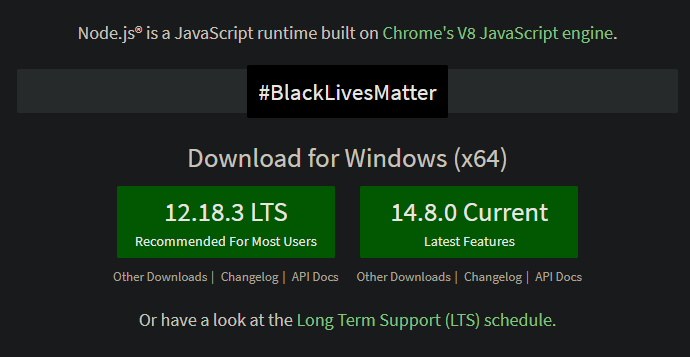
You can download it for your desired OS.
### 2. Once you have installed node.js, navigate to your folder from COMMAND LINE. And run `npm init -y`
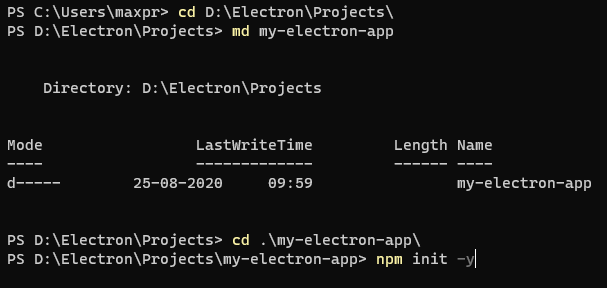
### 3. Open your code editor. I prefer [Visual Studio Code](https://code.visualstudio.com)
Which can be opened via this command in the command line.
```sh
code .
```
You will see a `package.json` file which will look like this:
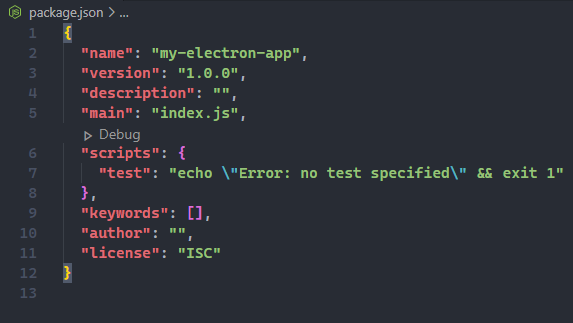
### 4. Then go to the command line again and run any of these commands to install `electron`.
```sh
# via npm
npm i electron
# or yarn
yarn add electron
```
Once `electron` is installed, you will see a change in the `package.json` file. A new dependency will be added.
### 5. Add a `script`
in your `package.json` file, you have to replace this script:
```json
"scripts": {
"test": "echo \"Error: no test specified\" && exit 1"
},
```
with this
```json
"scripts": {
"start": "electron ."
},
```
### 6. Create an `index.js` file.
After the config of our `package.json`, you should create a file called `index.js`, and fill the file with this code. This code is from [Electron.js docs](https://www.electronjs.org/docs/tutorial/first-app#electron-development-in-a-nutshell) :
```js
const electron = require('electron')
const { app, BrowserWindow } = electron;
function createWindow () {
// Create the browser window.
const win = new BrowserWindow({
width: 800,
height: 600,
webPreferences: {
nodeIntegration: true
}
})
// and load the index.html of the app.
win.loadFile('index.html')
// Open the DevTools.
win.webContents.openDevTools()
}
// This method will be called when Electron has finished
// initialization and is ready to create browser windows.
// Some APIs can only be used after this event occurs.
app.whenReady().then(createWindow)
// Quit when all windows are closed, except on macOS. There, it's common
// for applications and their menu bar to stay active until the user quits
// explicitly with Cmd + Q.
app.on('window-all-closed', () => {
if (process.platform !== 'darwin') {
app.quit()
}
})
app.on('activate', () => {
// On macOS it's common to re-create a window in the app when the
// dock icon is clicked and there are no other windows open.
if (BrowserWindow.getAllWindows().length === 0) {
createWindow()
}
})
// In this file you can include the rest of your app's specific main process
// code. You can also put them in separate files and require them here.
```
I am not explaining this file but you **MUST** understand this file and know **Node.js**. The **comments** in the file can guide you.
### 7. Create an `index.html` file
This one is really simple, just create an `index.html` file and fill it with your HTML. You can also add your own CSS file and also you can add your own JS files.
Sample HTML code:
```html
Hello World!
Hello World!
We are using node ,
Chrome ,
and Electron .
```
And That's it! Then you can go to your terminal and run `npm start` or `yarn start` and you will see your desktop app up and running!
If you got stuck in a problem during this setup, let me know in the comments.
I hope you enjoyed this. Happy Coding!